Show your daily progress as a live heatmap on any site

Get a website widget that displays a live graphic of your progress, from data in a Google Sheet
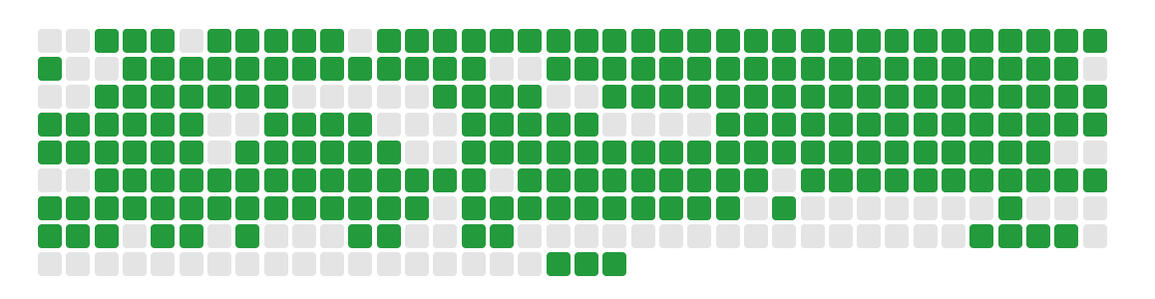

We even have a web button you can deploy, to automatically update your Sheet with one click each day.

◻️◻️◻️◻️◻️◻️

Track daily habits

  • Exercise

  • Meditation

  • Journaling

  • Reading

Track creative output

  • Writing

  • Coding

  • Shipping

  • Drawing

Show accountability

  • Progress reporting

  • Social posting calendar

  • Campaign tracking

  • Safety checks


Show your progress for accountability, or just for some kudos

◻️◻️◻️◻️◻️◻️


Click the button, it automatically updates your Sheet
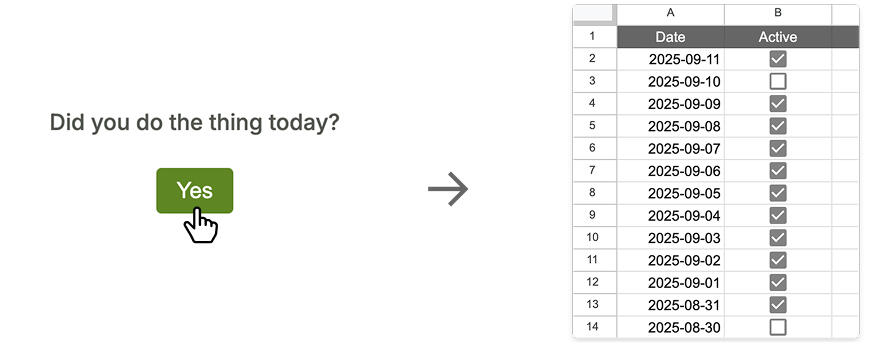
Which then automatically updates your widget


◻️◻️◻️◻️◻️◻️


Set up a Google Sheet & put our log button on a secret web page

Connect your Sheet and button to the tracker widget.

Embed the tracker widget anywhere with just an iframe.

Add your email to try it or get updates


Current features

  • Track progress in Sheets, via a web button

  • Generate a tracker widget iframe embed code (requires a Google API key)

  • Embed on a website or Notion page

  • Hover to see dates

window.addEventListener('message', e => { if (e.data.type === 'resize') { const iframe = document.querySelector('iframe'); // assumes one iframe if (iframe) iframe.style.height = e.data.height + 'px'; } });
window.onload = () => { const a = document.createElement('a'); a.innerHTML = 'Made by @markbowley'; a.setAttribute('href', 'https://markbowley.com'); Object.assign(a.style, { 'position': 'fixed', 'top': 'null', 'right': '0', 'bottom': '0', 'left': 'null', 'padding': '0.3rem 0.39999999999999997rem', 'margin': '1rem 1rem 1rem 1rem', 'line-height': '0.6rem', 'color': '#ffffff', 'backgroundColor': '#333333', 'textDecoration': 'none', 'borderRadius': '0.3rem', 'font-size': '0.6rem', 'font-weight': 'normal', 'cursor': 'pointer', 'transition': 'all .2s ease-in-out', 'z-index': '1000', 'box-shadow': '0 4px 6px -4px rgb(0 0 0 / 0.1)', 'font-family': '-apple-system, BlinkMacSystemFont, avenir next, avenir, segoe ui, helvetica neue, helvetica, Cantarell, Ubuntu, roboto, noto, arial, sans-serif' }); a.onmouseover = () => a.style.transform = 'scale(1.1)'; a.onmouseout = () => a.style.transform = 'scale(1)'; a.setAttribute('target', '_blank'); document.body.append(a); }


window.onload = () => { const a = document.createElement('a'); a.innerHTML = 'Made by @markbowley'; a.setAttribute('href', 'https://markbowley.com'); Object.assign(a.style, { 'position': 'fixed', 'top': 'null', 'right': '0', 'bottom': '0', 'left': 'null', 'padding': '0.3rem 0.39999999999999997rem', 'margin': '1rem 1rem 1rem 1rem', 'line-height': '0.6rem', 'color': '#ffffff', 'backgroundColor': '#333333', 'textDecoration': 'none', 'borderRadius': '0.3rem', 'font-size': '0.6rem', 'font-weight': 'normal', 'cursor': 'pointer', 'transition': 'all .2s ease-in-out', 'z-index': '1000', 'box-shadow': '0 4px 6px -4px rgb(0 0 0 / 0.1)', 'font-family': '-apple-system, BlinkMacSystemFont, avenir next, avenir, segoe ui, helvetica neue, helvetica, Cantarell, Ubuntu, roboto, noto, arial, sans-serif' }); a.onmouseover = () => a.style.transform = 'scale(1.1)'; a.onmouseout = () => a.style.transform = 'scale(1)'; a.setAttribute('target', '_blank'); document.body.append(a); }

Code generators


Tracker iframe

Generate an iframe code. See instructions below.

Log button

Generate the button code. See instructions below.

Iframe Code Generator

Log Button Generator

// Iframe generator function generateIframe() { const sheetId = document.getElementById("iframe-sheet-id").value.trim(); const apiKey = document.getElementById("iframe-api-key").value.trim(); if (!sheetId || !apiKey) { alert("Fill in both fields."); return; } const code = ``; document.getElementById("iframe-output").value = code; } // Log button generator function generateLog() { const url = document.getElementById("log-app-url").value.trim(); const accent = document.getElementById("log-accent").value.trim(); const muted = document.getElementById("log-muted").value.trim(); if (!url) { alert("Add your App Script URL."); return; } const code = `
const sendBtn = document.getElementById("gen-sendBtn"); const override = document.getElementById("gen-overrideBtn"); const overrideContainer = document.getElementById("gen-overrideContainer"); const status = document.getElementById("gen-status"); const STORAGE_KEY = "gen-sentToday"; const today = new Date().toISOString().slice(0,10); overrideContainer.style.display = "none"; if(localStorage.getItem(STORAGE_KEY)===today){ sendBtn.disabled=true; status.textContent="You've already logged today"; overrideContainer.style.display="inline"; } override.addEventListener("change",()=>{ sendBtn.disabled=!override.checked && localStorage.getItem(STORAGE_KEY)===today; status.textContent=sendBtn.disabled?"You've already logged today":""; }); document.getElementById("gen-send-form").addEventListener("submit",()=>{ sendBtn.disabled=true; status.textContent="Sending…"; overrideContainer.style.display="inline"; override.checked=false; setTimeout(()=>{ localStorage.setItem(STORAGE_KEY,today); status.textContent="Sent successfully!"; },500); }); <\/scr` + `ipt>`; document.getElementById("log-output").value = code; }

Set up your Google Sheet

  • Go to sheets.new

  • In Column A, put the dates in YYYY-MM-DD format

  • In Column B, put YES or NO or check boxes to indicate activity

  • Click Share → Change to Anyone with the link → Viewer to make it publicly readable

  • Find your Sheet ID – it's the long string between /d/ and /edit in the url


Create a Google Sheets API Key

  • Go to Google Cloud Console

  • Create a new project (or select an existing one)

  • In the left menu, go to APIs & Services → Library

  • Search for “Google Sheets API” and click Enable

  • Go to APIs & Services → Credentials → Create Credentials → API Key

  • Copy the generated API key


Google Sheets API Limits (Free tier):

  • Requests per day: ~100,000

  • Requests per 100 seconds per user: ~60

Set up your own logging button

1. Create a Google Apps Script

  • In your Google Sheet go to Extensions → Apps Script.

  • Paste in this script, changing NAME for your sheet tab name, (not your Sheets file name):

function doPost(e) {
const sheet = SpreadsheetApp.getActiveSpreadsheet().getSheetByName("NAME");
const timestamp = Utilities.formatDate(new Date(), "GMT", "yyyy-MM-dd");
sheet.insertRowBefore(2);
sheet.getRange(2, 1, 1, 2).setValues([[timestamp, true]]);
return ContentService.createTextOutput("Row added successfully");
}

  • Click Deploy → New deployment → Web app.

  • Set Execute as Me and Anyone for access.

  • Copy the Web App URL it gives.

2. Create your HTML form

  • Use this HTML where you want to embed the button form (replace YOUR_APP_SCRIPT_URL with your App Script URL):

3. Add the JS logic

  • Add this script on the same page, before the </body> tag:

4. Test it

  • Load your page in a browser, and click the Submit button.

  • Confirm it adds a row to your Sheets file, disables the button for the day, and shows the override checkbox after first submit.

Logging button demo

Test the logging button function with this demo, which updates the live tracker below

Did you do the thing today?


Example trackers


These are live embeds, using the prototype


Days I published a blog post this year

Days I shipped a prototype this year